What Is Microsoft Form Recognizer?
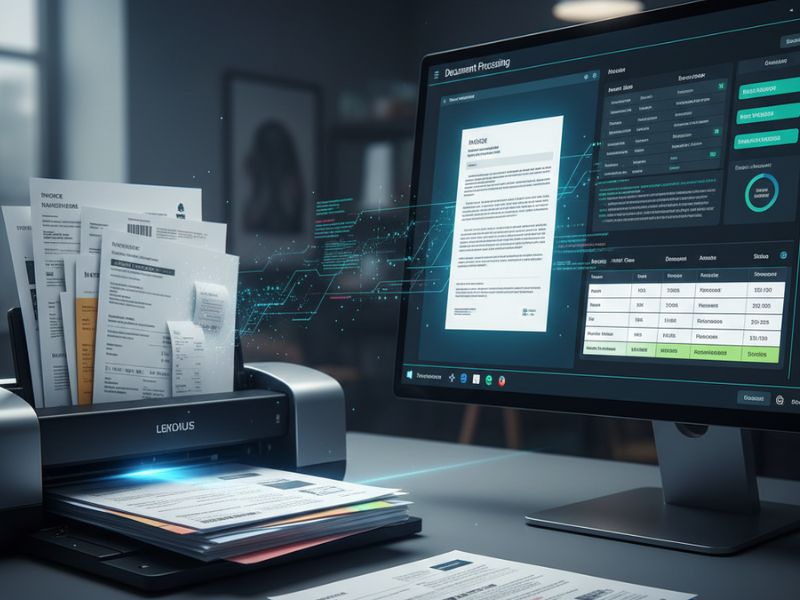
Microsoft Form Recognizer is a cloud based tool that reads documents, understands their structure, and then converts them into organized data that your apps or spreadsheets can use. It uses AI to detect text, tables, checkboxes, and key fields inside your forms and documents. You upload a file, let the AI do its magic, and then grab the data in a digital format, such as JSON or a table.
You can explore it and try demos from the official Azure page: https://azure.microsoft.com/en-us/products/ai-services/ai-document-intelligence/
The best part is that it fits naturally into a growing ecosystem of document AI tools, so you can chain it with workflows, automations, and even Microsoft Form AI style experiences to build smart, low effort data pipelines.
Main Features
a) Smart document AI tools extraction
Microsoft Form Recognizer, a top document AI tool, reads text, tables, and fields from PDFs and scans fast. No more manual typing. Perfect for invoices and forms.
b) Pre-built like Microsoft Form AI
Ready-made models handle receipts, IDs, and bills instantly, just like Microsoft Form AI. Upload and get data in seconds. Zero training needed.
c) Custom models for unique forms
Train it on your special layouts with document AI tools ease. Mark fields once, then automate forever. Great for exam papers or company forms.
d) Key-values and checkboxes
Grabs “Name: John” pairs and ticks automatically as document AI tools should. Clean data for apps. No confusion.
e) Workflow integration
Plugs into flows like Microsoft Form AI setups and other document AI tools. Automate end-to-end. Save hours daily.
How Does It Help?

Microsoft Form Recognizer helps by turning slow, manual paperwork into a fast, automatic process that saves time and reduces errors. Here are some clear ways it helps:
i) Cuts down manual typing
Instead of someone typing invoice data or exam application details by hand, the tool reads them for you. This reduces mistakes, reduces boredom, and frees people for more meaningful work. You can go from “I will finish this data entry by evening” to “The AI did it while I made coffee.”
ii) Speeds up approvals and decisions
When data is extracted quickly, approvals can be faster too. Finance teams can process invoices sooner, HR can onboard employees faster, and support teams can respond with complete information at hand. Decisions move at the speed of data extraction, not at the speed of someone’s typing speed.
iii) Makes documents searchable and organized
Form Recognizer can help turn unstructured documents into structured data that you can search, filter, and analyze. Once your forms live as rows and columns instead of piles of PDFs, you can easily answer questions like “How many invoices above 50,000 did we get last month?” It quietly upgrades your old paperwork into a searchable knowledge base.
iv) Works at scale, without getting tired
Humans get tired and bored; AI does not. Whether you process 20 forms a day or 20,000, the tool keeps going with the same energy and accuracy. For growing businesses, this means you can scale without hiring an army of data entry operators.
v) Plays well with other tools
Because it belongs to the broader world of document AI tools, Microsoft Form Recognizer works nicely as part of a larger system, including Microsoft Form AI styled solutions, Power Platform, and custom apps. You can design flows where a form is filled online, a document is uploaded, the AI reads it, and the system reacts automatically. This joined up approach is where the real power shows.
Stay ahead with our Tool of the Day—one brilliant AI or tech gem spotlighted daily to elevate your workflow. For deeper breakthroughs, our Weekly Tech & AI Update delivers trends, tips, and future-ready insights. One scroll could change your game. Go explore.
Fun and detailed example scenarios
- A small accounting firm uploads a folder full of client receipts at the end of the month. Form Recognizer extracts all amounts, dates, and merchants, and pushes the data into a spreadsheet. The accountant spends time checking trends instead of counting how many times “coffee” appears as an expense.
- A college admin office receives scanned admission forms in different formats. The tool reads student details, chosen courses, and contact information, then sends them into the student management system. The team jokes that the AI is the “silent intern” who never asks for a tea break.
- An insurance company uses custom models to read claim forms that have their own layout. Form Recognizer pulls out policy numbers, claim amounts, and incident dates, and forwards them to the claims engine. The company reduces claim processing time, and customers feel like someone pressed a “fast forward” button on their case.
- An online seller processes hundreds of supplier invoices every week. Form Recognizer reads line items, totals, and tax details and sends them to the inventory and accounting system. The owner finally stops spending Sunday evenings wrestling with invoices and starts binging that show everyone has been talking about.
- A training institute scans feedback forms from workshops. The tool reads ratings, comments, and session IDs, and turns them into neat rows of data. The trainer can see which sessions made students happy, and which ones made them reach for more coffee.
- A travel agency uses it to read visa documents and customer IDs. The data flows into their CRM, and agents can focus on building good itineraries instead of decoding handwriting that looks like it was written in a moving bus.
Getting Started in 3 Steps
Step 1: Create or use an Azure account
To use Microsoft Form Recognizer, you start with an Azure account. Once logged in, you search for Form Recognizer or Azure AI Document Intelligence in the portal and create a new resource. This gives you a place where your document AI tools will run and gives you keys and endpoints for access.
Step 2: Try Form Recognizer Studio or demos
Microsoft provides a browser based interface, often called Form Recognizer Studio or similar, where you can upload sample documents and test the models. You drag and drop your PDFs or images, choose a pre built or custom model, and see how the AI reads your data. This is the easiest way to get a feel for what the tool can do before you integrate it into a real app.
Step 3: Connect it to your apps or workflows
Once you are happy with the results, you connect Form Recognizer to your own systems. You can call it via API from custom code, or use low code tools and connectors to integrate it with Power Automate, Logic Apps, or other services. From there, you can build workflows that take documents from email, storage, or forms, run them through the AI, and then push the extracted data wherever you need it.
Use Cases
1) Invoice and receipt processing
Companies can use Microsoft Form Recognizer to read incoming invoices and receipts automatically. It captures totals, taxes, dates, and supplier details and passes them to accounting software. This helps finance teams close books faster and with fewer manual errors.
2) Onboarding and KYC documents
Banks, fintechs, and HR departments can use it to read ID cards, application forms, and address proofs. The tool extracts names, ID numbers, addresses, and dates of birth so that verification teams can move faster. It is like having a careful reader that never misreads a “0” as an “O.”
3) Exam and application forms
Educational institutions can scan exam registration forms or application forms and use Form Recognizer to pull out student data, chosen subjects, and contact details. This speeds up the creation of student records and hall tickets. It also reduces the chances that someone’s name gets typed in a way that even their parents would not recognize.
4) Insurance claims and policy documents
Insurance companies often deal with long forms and supporting documents. Form Recognizer can extract policy numbers, claim amounts, dates, and key details from these forms. This allows claims teams to prioritize and process cases faster while keeping data organized.
5) Contract and legal document intake
Legal teams can use document AI tools like this to extract parties, dates, amounts, and other key fields from contracts or agreements. That data can feed into contract management systems and reminders. It frees lawyers from the worst part of their job: manually hunting for that one date hidden on page 9.
6) Healthcare intake forms
Hospitals and clinics can scan patient intake forms and insurance information and use Form Recognizer to extract names, policy IDs, and contact details. The front desk staff can then focus on people instead of paper. Patients might still wait, but at least it will not be because someone is retyping their address for the third time.
7) Logistics and delivery paperwork
Logistics companies can read waybills, delivery notes, and shipping forms with the AI. Key fields like tracking numbers, weights, and destinations automatically flow into their tracking systems. This reduces typing errors that send packages on unplanned world tours.
Real Life Examples To Bring It Alive
- A startup founder jokingly names Form Recognizer “Ramesh” and tells the team, “Send all your receipts to Ramesh.” By the end of the quarter, Ramesh has processed thousands of documents without asking for a salary hike or a promotion.
- A university admin team runs a batch of messy, handwritten admission forms through the tool and gets data that is 90 percent clean. The remaining 10 percent are just students who write like doctors, and nobody blames the AI for that.
- In a mid size company, the CFO notices that monthly closing suddenly takes two days less after they adopt Microsoft Form Recognizer. Someone jokes that the AI should be invited to the office party, but then they realize it would probably just scan the invitation and optimize the snack budget.
- A travel agency uses it to scan different visa forms and passport copies. One agent says, “Earlier, I knew the passport numbers of all my regular clients by heart, now I just know the name of the AI that reads them for me.”
- An insurance team that used to hate Monday mornings full of new claims now spends that time reviewing only the complex cases. All simple, well structured claims have already been read and sorted by the AI. Monday is still Monday, but at least it is not filled with scrolling through PDFs.
- A training company uses it to scan feedback forms. When they see one session with very low ratings, the trainer jokes, “Good that the AI told us; humans in the room were too polite to say it.”
- A logistics firm uses it to read delivery notes, and suddenly lost packages drop by a noticeable amount. The manager says, “Apparently the AI reads handwriting better than half the team, including me.”
Common Mistakes (And Simple Examples)
1) Poor quality scans kill document AI tools accuracy
People upload blurry photos or dark scans and wonder why document AI tools like Microsoft Form Recognizer fail. The AI needs clear input to shine, just like Microsoft Form AI needs good form data. Always check if a human can read it first.
2) Wrong model wastes Microsoft Form AI style power
Using a receipt model on contracts ignores document AI tools smarts. Each document AI tool has specialized models, like Microsoft Form AI for forms. Pick the right one or train custom.
3) Skipping custom training for unique forms
Standard models struggle with company specific layouts, wasting document AI tools potential. Microsoft Form AI style customization fixes this fast. Spend 30 minutes labeling samples.
4) No validation after document AI tools extraction
Blind trust in output leads to errors, even from Microsoft Form AI level tools. Add rules like “amount > 0.” Humans review edge cases.
5) No integration limits document AI tools ROI
Testing alone misses Microsoft Form AI workflow magic. Connect to Excel, CRM, or Power Automate. True power is automation.
6) Ignoring privacy in document AI tools setups
Giving everyone access breaks compliance. Document AI tools like Microsoft Form Recognizer need role-based controls. Secure your cloud storage too.
7) Expecting document AI tools to fix bad processes
Messy workflows + AI = faster mess. Clean your process first, then add Microsoft Form AI style automation. Standardize document formats.
Simple examples to make it clearer
- Good scan vs bad scan: A clear flatbed scan of a receipt works well; a tilted phone photo with a thumb covering the total does not.
- Right model vs wrong model: Using an invoice model on an invoice gives usable totals; using a general model might miss some fields.
- With validation vs without validation: An expense system that flags huge or negative totals catches errors; one without checks will happily accept that your coffee cost more than your laptop.
- With custom model vs generic: A custom model for your school’s admission form reads “Stream,” “Subjects,” and “Hostel Required” correctly; a generic model treats them as random text.
- Integrated vs not integrated: An automated flow that pushes extracted data into accounting software saves time; manually copy pasting from JSON does not.
Friendly Conclusion And Beginner Tips
Microsoft Form Recognizer is like a super fast assistant for your paperwork that never complains, never gets bored, and never loses a document. When combined with other document AI tools and experiences similar to Microsoft Form AI, it becomes a powerful engine for modern, automated workflows.
Beginner tips and encouragement
- Start small: Pick one simple use case, like receipts or invoices, and test with a small batch of documents.
- Use pre built models first: Get quick wins with built in models before diving into custom training.