What Is Magic Eraser?
Magic Eraser is a built-in AI tool inside Google Photos that removes distractions from your pictures. It scans your photo, finds things that do not belong, and then fills the empty space with smart AI-generated background so it looks natural. You just tap or circle what you want gone, and the AI photo editing engine quietly rewrites reality.
You can access Magic Eraser through the Google Photos app on Android, iOS, and supported devices, with many features now available to more users than just Pixel owners. Google’s official page for Magic Eraser and other AI editing tools is here: https://www.google.com/photos/editing/.
Main Features
1) Smart distraction detection
Magic Eraser scans your photo and automatically suggests people or objects you might want to remove, like photobombers or random background clutter. It often highlights strangers, poles, or bright things that pull attention away from your subject, so you do not have to play detective. This is perfect for quick AI photo editing when you are in a hurry and just want a clean shot for social media.
In many cases, you get an “Erase all” option that wipes out all the suggested distractions in one go, like a “control+Z for reality.”
2) Tap or circle to erase anything
If the automatic suggestions miss something, you can simply tap or draw a rough circle around the object you want to remove. The AI then erases it and fills the gap with matching texture, color, and patterns from the surrounding area. This part of the Magic Eraser review is where it really feels like wizardry, especially when it fixes busy backgrounds surprisingly well for casual users.
Even if your circle looks like you drew it in a moving bus, the AI photo editing engine usually understands what you meant.
3) Camouflage instead of delete
Magic Eraser does not just delete things; it can also “camouflage” them by changing their color so they blend into the background. This is useful when completely removing an object might look weird, but toning it down makes the photo calmer and more focused. Think of it as turning loud background objects into quiet background extras.
Camouflage is a subtle form of AI photo editing that helps keep your photos realistic while still improving them.
4) Works across many photos and devices
Magic Eraser works on photos you took long ago, not just pictures snapped on the latest Pixel phone. You can open any older shot in Google Photos and start cleaning it up, as long as your account and device support the feature. That makes this Magic Eraser review relevant whether you are editing travel photos from three years ago or last night’s party selfies.
Because it lives in Google Photos, you get a familiar interface and quick access on Android and other supported platforms.
Stay ahead with our Tool of the Day—one brilliant AI or tech gem spotlighted daily to elevate your workflow. For deeper breakthroughs, our Weekly Tech & AI Update delivers trends, tips, and future-ready insights. One scroll could change your game. Go explore.
How Does It Help?
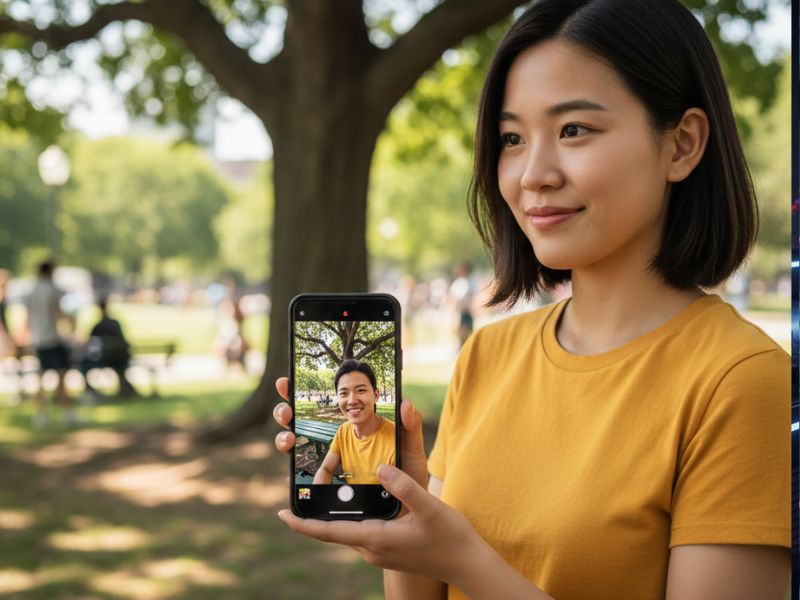
Magic Eraser helps by turning “almost perfect” photos into “actually usable” photos. It saves time, reduces the need for complex software, and lets regular people enjoy AI photo editing without learning confusing tools. Here is how it solves real problems:
i) Fixes ruined group photos
That one stranger doing jumping jacks in the background? Gone. Instead of retaking group photos again and again, you can keep the best expressions and erase the chaos behind them. This Magic Eraser review would be incomplete without admitting that many “perfect” family pictures online probably had some AI help.
ii) Cleans up travel photos
Travel pictures often look messy, with crowds, signboards, and random tourists. Magic Eraser helps you erase people, signs, and trash so your photo looks like you had the entire place to yourself, even if you were elbow-to-elbow with fifty other visitors. This is where AI photo editing feels like teleporting to a private version of reality.
iii) Makes social media posts look professional
Even if you are not a designer, neat backgrounds make your photos look instantly more polished. Magic Eraser lets you remove distractions from product pics, selfies, and flat-lay shots so your content looks like you spent a lot more time editing than you actually did. For a quick Magic Eraser review from content creators: it is basically a free upgrade to your Instagram game.
iv) Saves time vs. traditional tools
Instead of fiddling with layers and masks in heavy desktop apps, you are just tapping on your phone. The AI handles the complicated parts of AI photo editing, like rebuilding backgrounds and textures. That means less time dragging sliders and more time actually taking photos.
v) Helps non-techies feel like pros
You do not need any photo-editing background to use Magic Eraser. The steps are simple, the interface is familiar, and most of the “thinking” is done by the AI, which is great if your main skill is accidentally opening the front camera.
Fun, detailed examples
a) Removing your ex from vacation photos
You have a beautiful beach shot, but an unwanted person in the frame makes it unusable. Magic Eraser lets you tap them away so only you, the sea, and your new haircut remain. It is like emotional AI photo editing therapy, but faster and cheaper.
b) Cleaning up a product photo for your small business
You took a photo of your handmade candle on your desk, but a cable, notebook, and random spoon sneaked into the frame. Magic Eraser removes the clutter so your candle looks like it lives in a Pinterest-ready studio. That is why small sellers often love tools like this, as every Magic Eraser review from indie shop owners quietly hints.
c) Fixing a kid’s birthday picture
Your child is blowing out candles, but a guest is half-walking into the shot and someone’s hand is waving in front. Use Magic Eraser to remove the extra person and the awkward hand, keeping the moment but losing the chaos. Parents finally get that “perfect” photo they wanted, without re-staging the wish.
d) Neatening LinkedIn profile photos
Your profile picture is sharp, but there is a bright sign or random face behind you. Magic Eraser lets you erase these distractions so you look like you had a professional photoshoot instead of “my friend took this outside a mall.” This kind of AI photo editing makes everyday photos office-ready.
Getting Started in 3 Steps
i) Open Google Photos and choose a photo
Open the Google Photos app on your phone and select the image you want to fix. Tap the photo so the editing options appear at the bottom.
ii) Tap Edit, then Tools, then Magic Eraser
Tap “Edit,” then look for “Tools,” and choose “Magic Eraser” from the options. The app will scan your photo and may highlight suggestions for what to erase.
iii) Erase, review, and save a copy
Tap on suggested objects or circle your own, then watch them disappear. When you are happy, tap “Done” and choose “Save copy” so you keep both the original and the edited version.
Use Cases

i) Travel photography clean-up
Use Magic Eraser to remove crowds, signboards, and random strangers from your travel shots so the location shines. It makes your vacation look peaceful, even if you took that Taj Mahal shot with five hundred people behind you.
ii) Social media content creation
Influencers, creators, and small brands can fix messy backgrounds in a few taps instead of reshooting everything. This makes AI photo editing a daily habit, not a once-in-a-while complicated task.
iii) Online selling and product listings
Marketplaces love clean product photos. Magic Eraser helps remove logos, props, or clutter so only your product stands out, just like dedicated object-removal tools on the web. That makes your listing look more trustworthy and professional.
iv) Family and event photos
Birthdays, weddings, graduations, and festivals often have great moments ruined by random background drama. Use Magic Eraser to remove those distractions and create clean keepsakes that you can actually print and frame.
v) Content for blogs and thumbnails
Bloggers and YouTubers can remove distractions from thumbnails, banners, and blog images to keep focus on faces, products, or text. This makes your overall brand look cohesive and deliberate, even if you shot everything on a basic phone.
vi) Cleaning old photos
You can open older photos in Google Photos and remove small distractions like trash cans, poles, or random heads. While it is not full restoration, this kind of AI photo editing still modernizes old memories.
Real-Life Examples With a Bit of Humour
i) The “perfect” sunset selfie
You capture a moody sunset selfie, but a guy behind you is aggressively eating corn. Magic Eraser quietly deletes him and his crunchy snack, leaving you alone with the sky like a deep philosopher.
ii) The street dog at your proposal
You bend down to propose, someone snaps a photo, and a curious dog wanders into the frame mid-scratch. Magic Eraser lets you keep the romance and remove the dog’s confused cameo, unless you want to credit him as “emotional support witness.”
iii) The office whiteboard disaster
Your colleague takes your “professional” photo in front of a whiteboard full of half-erased doodles and bad ideas. A quick erase makes it look like you work somewhere serious, not in a start-up that brainstorms “Project Phoenix 9.0” every week.
iv) The landmark photobomb marathon
You finally pose solo in front of a famous monument, but three tourists are mid-run behind you with water bottles held like trophies. Magic Eraser clears them out so you look like the only person who travelled that day.
v) The festival chaos crop
Your Diwali picture is lovely, but a pile of plastic bags and a half-burnt cracker ruin the vibe. With a few taps, Magic Eraser cleans the scene, making it look like you live in a Pinterest-perfect festive universe.
vi) The gym mirror reality check
You take a proud gym mirror selfie, then notice five people behind you making faces or checking their phones. Magic Eraser lets you remove them and keep only you and the slightly suspicious amount of sweat.
Common Mistakes (And Simple Examples)
i) Expecting perfection on every photo
Magic Eraser is powerful, but it is not magic in the literal sense. On complex backgrounds with patterns, it can sometimes leave smudges or odd textures. For example, erasing someone standing in front of a detailed fence might look slightly weird if you zoom in too much.
ii) Erasing too many things at once
If you remove half the photo, the AI has to invent a lot of background, and that can look fake. Better to erase a few key distractions instead of trying to “clean the entire world” in one go. For example, remove three people from a beach photo, not the entire crowd of twenty at once.
iii) Not checking the result before saving
People sometimes tap “Erase all,” hit “Save copy,” and never zoom in to see if anything looks odd. Always inspect the edited area before sharing, so you do not post a photo where a person’s shadow exists but the person does not. For example, in a park photo, make sure benches, shadows, and lines remain natural.
iv) Using it on very low-quality photos
On extremely blurry or low-resolution images, Magic Eraser has less information to work with. The AI photo editing model may produce mushy or smeared patches when trying to rebuild large areas. For example, erasing a person from a tiny zoomed-in figure in the distance might just create a foggy blob.
v) Removing important context by accident
Sometimes you erase things that actually matter to the story of the photo, like signs, logos, or background people. Later, you might wish you had kept the original feel. For example, deleting a friend from a group shot just because they blinked may not be the wisest long-term friendship strategy.
vi) Forgetting you still have the original
Google Photos lets you save a copy, so you keep the original version too. Some people worry they “deleted reality forever,” but the untouched photo usually stays safe. For example, you can have one “truthful chaos” album and one “Magic Eraser review ready” album.
Friendly Wrap-Up And Tips For Beginners
Magic Eraser makes AI photo editing feel fun, fast, and surprisingly drama-free for everyday users. It is ideal for anyone who wants cleaner photos without learning heavy software or complicated tools, and this Magic Eraser review barely scratches the surface of how often you will start using it once you get hooked.
Tips for beginners: