What Is Luminar AI?
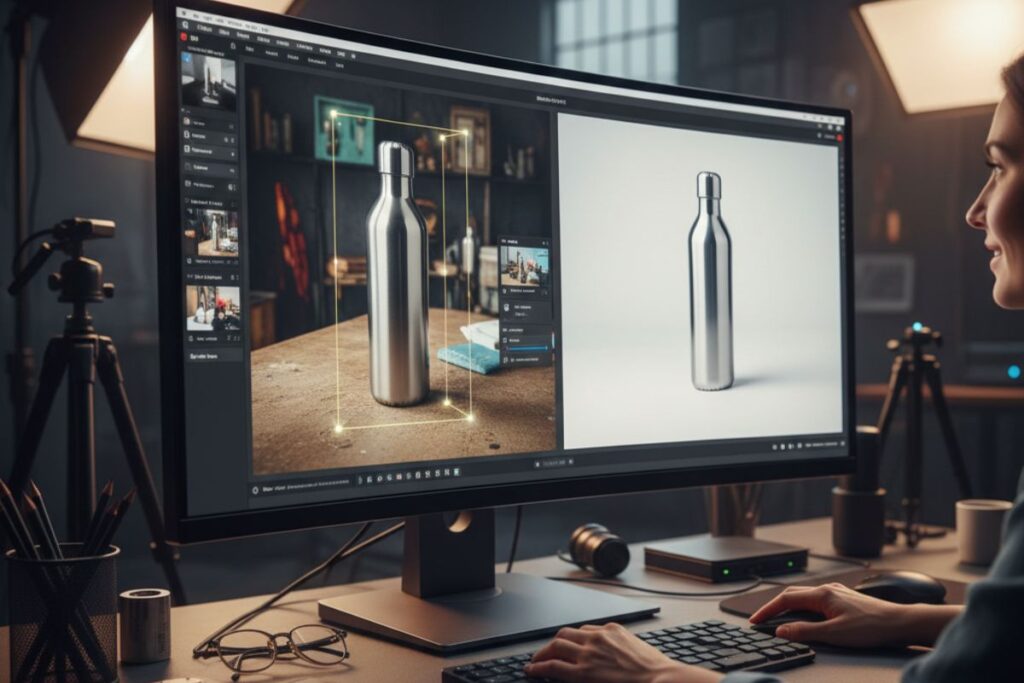
Luminar AI is photo editing software that uses artificial intelligence to do the heavy lifting for you. It can automatically improve lighting, colors, skies, and even faces, turning “meh” shots into “wow” with just a few sliders.
Unlike traditional tools that bury you in complex menus, this AI photography tool focuses on smart presets and guided adjustments. You still stay in control, but the software quietly does the nerdy math in the background.
Main Features
I Smart AI Templates
This Luminar AI review highlights its one-click templates that use AI photography tools to fix color, light, and mood instantly. You load a photo, pick a style, and it looks ready for Instagram in seconds.
II. Sky & Atmosphere AI
Among all AI photography tools, Luminar AI’s sky features steal the show. They swap dull skies for vivid ones and adjust lighting automatically — your photos go from flat to cinematic fast.
III. Face & Skin AI
Every Luminar AI review praises these portrait tools. With AI help, faces brighten, skin smoothens, and eyes pop — naturally, not plastic-fantastic.
IV. Relight & Enhance AI
These AI photography tools fix exposure and add punch with one slider. They make backlit or uneven shots look perfectly lit without touching manual settings.
V. GenErase & GenExpand
This Luminar AI review wouldn’t skip the generative tools. Remove distractions, expand the frame, or fill missing spots — all believable, all AI magic..
How Does It Help?
A. Saves Serious Time on Editing
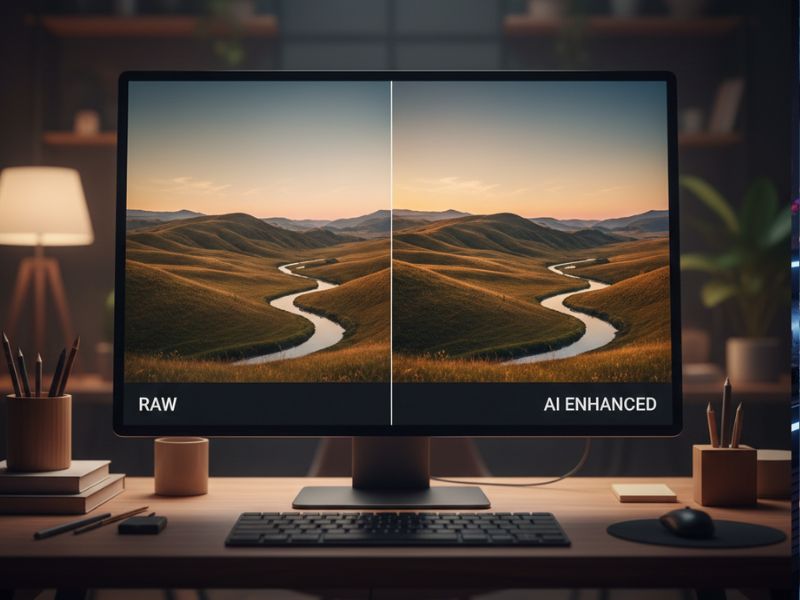
Luminar AI speeds up editing by automating common fixes like exposure, color correction, noise reduction, and sharpening. Instead of spending half an hour on one photo, you can batch‑apply presets and tweak only a few sliders. For busy people, this means more time shooting (or binge-watching shows) and less time staring at histograms.
B. Makes Beginners Look Advanced
Even if you barely know what “dynamic range” is, Luminar AI makes your photos look like you do. Guided tools, intuitive sliders, and one‑click presets help complete beginners get results that used to require a lot of study. It is like having a friendly mentor who handles the complex stuff while you just decide whether you want “moody” or “vibrant.”
C. Fixes Tricky Lighting and Skies
Backlit portraits, dull skies, and harsh midday light are classic photo killers, and this tool tackles all three. Relight AI and Portrait Bokeh AI help save badly lit shots, while Sky AI and Atmosphere AI rescue landscapes and cityscapes. This turns “I messed up the lighting” photos into “I totally meant to do that” masterpieces.
D. Improves Portraits Without Overdoing It
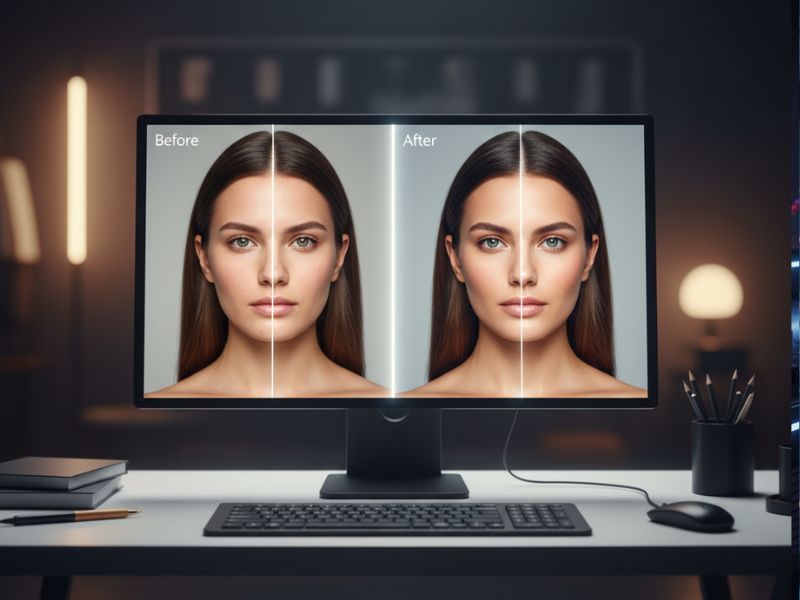
Skin AI and Face AI allow quick touch‑ups while keeping a natural look, which is great for social media, client shoots, or LinkedIn headshots. You can remove blemishes, reduce shine, brighten eyes, and subtly reshape faces without going full alien filter. Friends will notice they look good, but they will not immediately accuse you of crimes against reality.
E. Fits Both Casual and Serious Workflows
Because Luminar AI and Luminar Neo can run standalone or as plugins, they work for casual users and serious hobbyists alike. You might use it purely for quick presets, or as a finishing tool after a more detailed RAW workflow. This flexibility is a big reason it pops up so often in any Luminar AI review and lists of top AI photography tools.
Fun, Detailed Examples
- The “Vacation Cloud Disaster” Fix
You finally visit a dream beach, take 200 photos, and only later notice the sky looks like wet cardboard. Sky AI steps in, lets you swap in a dramatic sunset or soft pastel sky, and adjusts reflections in the water automatically. Suddenly your feed says “tropical paradise,” not “sad weather report.” - The “Under-Eye Circles from 3 AM Study Session” Portrait
You take a quick portrait before an important interview and your face screams “I have not slept since 2019.” Skin AI and Face AI reduce eye bags, even out skin, and brighten the face in a few sliders. Now you look like a responsible professional instead of someone sponsored by caffeine. - The “Random Guy in Red Jacket” Problem
You captured a beautiful cityscape and then notice a bright red stranger wandering right through the frame. GenErase or object-removal tools cleanly remove that person and fill in the background with realistic detail. It is like telling history, “Nope, that guy never existed in my perfect photo.” - The “Too Far from the Edge” Landscape
You framed an epic mountain scene, but later wish you had a bit more foreground. GenExpand can extend the canvas and generate believable extra scenery, blending it into the original shot. Nobody needs to know your “perfect composition” was partly AI improv. - The “Brutal Fluorescent Lighting” Office Headshot
Your colleague demands a new LinkedIn photo, and all you have is a shot under harsh office lights. Relight AI and Studio Light-style tools fix the lighting, soften the background, and brighten the face properly. The result looks more like a studio shoot and less like a passport photo gone wrong.
Getting Started in 3 Steps
- Download and Install
Go to the official page at skylum.com/luminar-ai or the Luminar Neo download page and grab the installer for your system. Run the installer, sign in to your Skylum account, and launch the app once setup finishes. - Import Your Photos
Open Luminar and either drag and drop photos or add a folder to build a small library. You can import RAW or JPEG files, and the software will display them in a clean, simple interface ready for editing. - Pick a Template, Then Tweak
Select a photo, choose a recommended preset or “Template,” and watch AI instantly enhance your image. From there, adjust extra tools like Sky AI, Portrait Bokeh AI, or Relight AI until it feels just right, then export and share.
Use Cases
I. Social Media Glow-Up
Casual users can quickly turn everyday phone photos into eye-catching posts for Instagram, LinkedIn, or personal blogs using smart presets and Enhance AI. You spend less time editing and more time thinking of captions that are not completely cringe.
II. Hobbyist Landscape Photography
If you love shooting mountains, city skylines, or seascapes, Luminar AI’s Sky AI, Atmosphere AI, and Sunrays tools are extremely handy. They help you create dramatic images even when the weather is uncooperative, which, let’s be honest, is most of the time.
III. Portrait and Headshot Work
Freelancers and small studios can use Face AI, Skin AI, and Portrait Bokeh AI to speed up client work without needing a huge retouching skillset. The software keeps things natural, so your clients look like polished versions of themselves, not filter experiments.
IV. E‑commerce and Product Photos
Online sellers can clean up product shots, remove distractions, and enhance colors so items look sharp and appealing on marketplaces. Generative removal and background tools help create studio-like results without a full studio.
V. Event and Wedding Photography
Event photographers can batch process large sets with AI presets, then fine‑tune special photos with portrait and lighting tools. This keeps delivery times reasonable while still giving those “hero shots” a premium feel.
VI. Content Creators and Bloggers
Bloggers, YouTubers, and creators can use Luminar AI to maintain a consistent visual style across thumbnails, banners, and article images. Having a fast AI photography tool in the workflow means less time stuck in editing and more time actually making content.
Stay ahead with our Tool of the Day—one brilliant AI or tech gem spotlighted daily to elevate your workflow. For deeper breakthroughs, our Weekly Tech & AI Update delivers trends, tips, and future-ready insights. One scroll could change your game. Go explore.
Real-Life Examples (With a Smile)
- The “Travel Blogger Who Outsourced the Sky to AI”
A travel blogger posts daily, but the weather apparently did not get the memo. Half the trip photos have dull flat skies, so Sky AI quietly swaps them for dramatic clouds and sunsets. Followers now think they have perfect luck, and the blogger politely refuses to confirm or deny it. - The “Wedding Photographer’s Secret Weapon”
A wedding photographer accidentally underexposes a chunk of the reception photos thanks to some creative DJ lighting. Relight AI and Enhance AI rescue the set, bringing back faces and details before panic fully sets in. The couple sees the final album and calls the photographer a genius, not knowing the genius is partly silicon. - The “LinkedIn Glow-Up Before Promotion Season”
An employee uses a quick selfie against a dull wall, then runs it through Face AI, Skin AI, and Portrait Bokeh AI to clean things up. The before-and-after is so dramatic that colleagues ask which studio they went to, and the answer is “my living room and Luminar.” - The “Street Photographer Who Hates Trash Bins”
A street photographer has an amazing frame ruined by a bright trash can hovering near the subject’s head. GenErase removes it, fills in the missing wall, and saves the shot. The photographer now refers to it as “the invisible bin project” with great pride. - The “Food Blogger With Ugly Kitchen Lighting”
Home-cooked dishes look tasty in person but lifeless in photos thanks to harsh kitchen bulbs. Enhance AI, Relight AI, and color tools turn beige plates into vibrant, mouth‑watering images. Readers assume there is a fancy studio involved; in reality, it is one stove, one window, and one AI sidekick. - The “Student Who Turned a Class Project into a Portfolio Piece”
A student shoots a basic photo project on a budget camera, then runs the images through presets, Sky AI, and portrait tools for dramatic polish. The final results look so professional that the teacher double-checks whether they hired a retoucher.
Common Mistakes People Make
I. Overusing Presets
Many beginners rely only on one-click fixes from AI photography tools. This Luminar AI review reminds you that presets are a start, not the finish line. A quick brightness or contrast tweak makes results look natural.
II. Too Much Skin AI
The most common Luminar AI review warning? Over-smoothing faces. AI photography tools can erase texture if pushed too far, making people look waxy. Keep sliders moderate for real-skin charm.
III. Unrealistic Sky Swaps
Some users slap a fiery sunset on a gloomy street. Every Luminar AI review advises matching the mood — Sky AI works best when lighting feels consistent. Overdoing it screams “edited!”
IV. Ignoring Composition
AI photography tools fix lighting, not framing. Crooked shots or clumsy angles still ruin great edits. Straighten horizons and crop first for a pro feel.
V. Tiny Low-Quality Files
A hidden mistake beginners make in Luminar AI review tests — editing small screenshots instead of good RAWs. AI photography tools need quality data; low-res files limit crisp results.
Simple Mistake Examples
i. A user cranks Skin AI to max on a close‑up portrait and ends up with a face that looks airbrushed and slightly alien. Dialing it back halfway keeps skin natural but still smoother.
ii. Someone swaps in a blazing sunset sky on a photo where the ground is clearly wet and gloomy. The mismatch makes viewers feel something is off, even if they cannot say why.
iii. A beginner edits a tiny WhatsApp image and expects print‑level quality. When printed, everything looks fuzzy, reminding them that AI cannot invent resolution from nothing.
iv. A user stacks multiple intense presets on top of each other without resetting, resulting in radioactive neon colors. One preset plus small tweaks usually beats five stacked experiments.
v. Someone exports all images at super low JPEG quality to save space. When those photos go on a website, they look compressed and muddy instead of crisp.
Friendly Conclusion and Beginner Tips
Luminar AI makes powerful photo editing feel friendly, fast, and fun, even if you are just starting out. It is one of those AI photography tools that quietly makes you look far more skilled than you feel, as many a happy Luminar AI review will confirm.