
Kapwing is a cloud-based video editor that lets you create, edit, and repurpose videos directly in your browser from any device. You can upload footage, trim clips, add text, images, subtitles, and export everything in formats ready for TikTok, YouTube, Instagram, and more.
It focuses strongly on AI video editing features, like smart clipping and automatic captions, to save you from doing slow, manual work. Teams can also work together on projects in real time, like a Google Doc but for video, which makes it extra friendly for agencies and remote teams.
Main Features
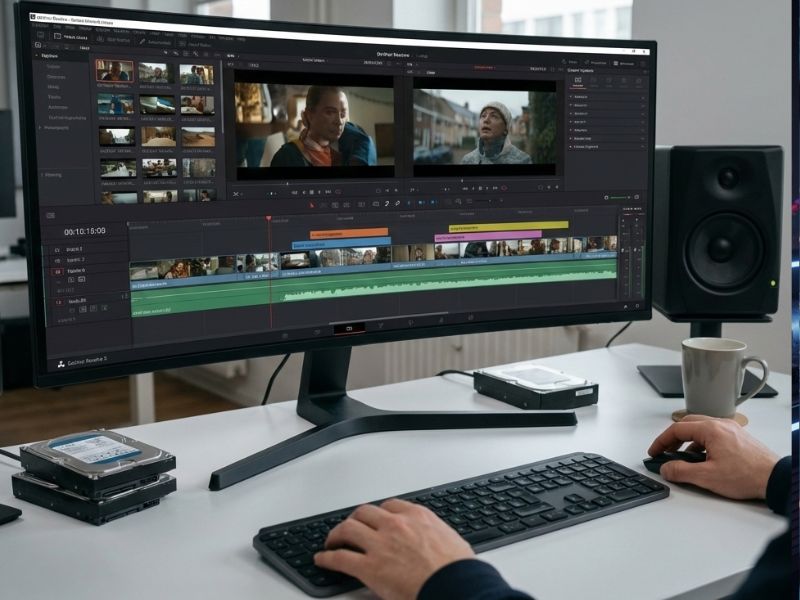
i AI Assistant and Smart Tools
Kapwing’s AI Assistant powers AI video editing with Smart Cut, B-roll, and eye contact fixes in clicks. This Kapwing review loves how it guides beginners through prompts for pro results fast. No complex timelines needed.
ii. Auto Subtitles and Dubbing
Generate styled subtitles, translate to languages, and dub audio automatically. AI video editing shines here, turning one clip global without re-recording. Kapwing review calls it a time-saver for creators.
iii. Clean Audio and Background Remover
Remove noise, normalize sound, and erase backgrounds sans green screen. Fix home recordings instantly in this Kapwing review standout feature. AI video editing makes amateur footage look studio-grade.
iv. Templates and Social Resizing
Drag-and-drop templates plus stock assets for Reels, Shorts, ads. Resize for any platform effortlessly. This AI video editing flow boosts Kapwing review scores for multi-channel creators.
v. Cloud Team Collaboration
Edit together in-browser, comment on timelines, share links. Perfect for agencies per Kapwing review users. AI video editing stays seamless across devices
How Does It Help?
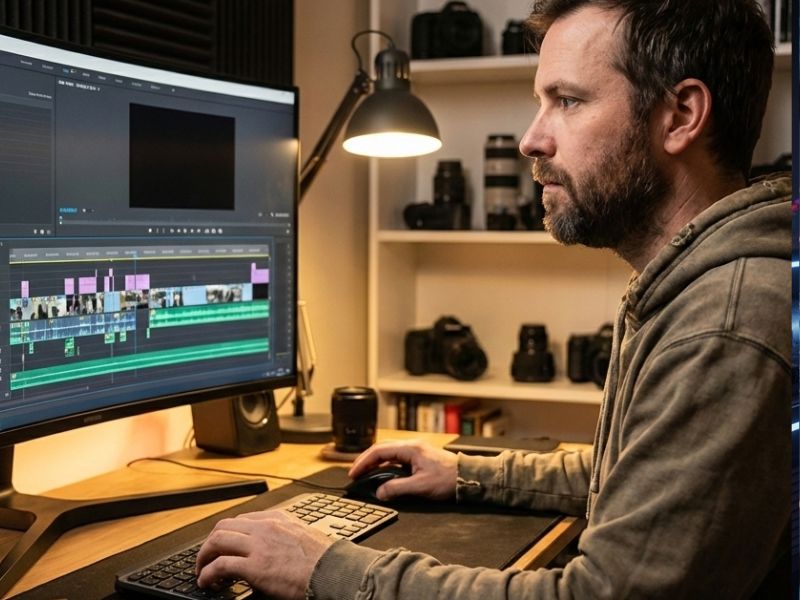
Kapwing helps users turn long, unpolished footage into short, engaging clips far faster than manual editing. It removes the need for high-end hardware or advanced skills by handling heavy processing in the cloud and wrapping it in simple, friendly controls.
It also helps teams collaborate better and repurpose content for multiple channels, making your existing videos work harder without extra shooting days. Below are ways it solves real problems, with some fun, real-world style examples to spark ideas.
i. Saving Time on Editing
Kapwing’s AI video editing tools cut silences, highlight key moments, and auto-generate captions so you can edit a 30-minute video in a fraction of the usual time. This helps busy creators, marketers, and teachers who cannot afford to spend hours trimming clips frame by frame.
ii. Making Content Look Professional
Features like Clean Audio, background removal, templates, and smart transitions help your videos look polished even if you filmed them in a noisy room. Viewers judge fast, and these tools help you quietly fix flaws before anyone notices your “studio” is actually the corner of your bedroom.
iii. Reaching Global and Multi-Platform Audiences
Auto subtitles, translations, and easy social resizing mean the same video can reach people in different languages and on different platforms without extra editing. Instead of editing new versions from scratch for TikTok, YouTube Shorts, and Instagram Reels, you can duplicate and resize projects in minutes.
iv. Helping Non-Editors Get Started
Kapwing is browser-based, guided, and much lighter than pro editors, so non-technical users can jump in quickly. It is ideal for HR teams, educators, and small businesses that need video content but do not have a dedicated video editor on staff.
v. Supporting Teams and Clients
Cloud collaboration, shared workspaces, and comments make it easier for teams to work together and keep everything in one place. Agencies and freelancers can share project links to review edits instead of sending huge files or screen recordings.
Interesting Example Scenarios
i. The YouTuber with a Day Job: A part-time YouTuber records a 45-minute tutorial after work and uses Smart Cut and auto captions to turn it into a tight, engaging 15-minute video plus three Shorts, all in one evening instead of a whole weekend.
ii. The Teacher Who Hates Editing: A teacher records a long explainer on exam prep, feeds it into Kapwing, and quickly creates subtitled clips for each chapter so students can rewatch only the parts they need before exams.
iii. The Startup Founder with No Editor: A founder records a messy product demo on Zoom, then uses Kapwing’s AI video editing features to trim awkward pauses, add captions, overlay key points, and export a clean demo video for investors and landing pages.
iv. The Social Media Manager on a Deadline: A marketer takes one webinar, slices it into short quote clips with captions, and exports perfectly sized versions for LinkedIn, TikTok, and YouTube Shorts in one sitting, making the boss think they secretly hired three extra people.
v. The Creator Going Global: A creator dubs their English tutorial into Spanish and adds translated captions, instantly opening up a new audience without re-recording anything.
vi. The HR Team Making Onboarding Fun: HR records a “Welcome to the Company” video, then uses templates, stock footage, and captions to turn it into a playful, short series of clips that make new hires feel less like they joined a spreadsheet and more like a real team.
Getting Started in 3 Steps
i. Visit Kapwing and Create an Account
Go to the main site at https://www.kapwing.com and sign up with email, Google, or another option. You will land in a simple dashboard where you can start a new project or explore the AI Toolkit.
ii. Upload Your Video or Paste a Link
Click to start a new project, then upload footage from your device or paste a link from platforms such as YouTube or other sources. Once the file loads, you will see it on the timeline and can open AI video editing tools like Smart Cut, captions, or Clean Audio.
iii. Edit, Export, and Share
Use the tools to trim, caption, resize, and polish your video until it looks the way you want. Then click Export, choose your settings, and either download the file or share a Kapwing link or direct upload to your favorite social platforms.
Use Cases

i. Social Media Reels and Shorts
Creators can turn long-form videos or raw phone footage into vertical, captioned clips that perform well on TikTok, Instagram Reels, and YouTube Shorts. AI video editing features like Smart Cut and auto subtitles help keep the pace fast and the message clear, even when viewers watch without sound.
ii. Educational Tutorials and Courses
Teachers, coaches, and online course creators can record lessons once and then break them into bite-sized, subtitled segments. This makes complex topics easier to digest and lets students jump to the exact part they need before an exam or test.
iii. Marketing and Product Videos
Marketers can create product explainers, promo clips, and ad creatives with templates and stock footage. Clean Audio, transitions, and overlays make the brand feel more professional without requiring a full agency or post-production team.
iv. Internal Company Updates
Leaders can quickly record updates, town halls, or announcements and then trim, caption, and share them with the team. This is especially helpful for remote teams where video helps people feel more connected than long text emails.
v. Podcasts and Interviews
Podcasters can upload full episodes and use highlight tools to find and clip the best moments for social media promotion. With captions and resizing, those interview clips can become a steady stream of content across all channels.
vi. Event Recaps and Vlogs
Event organizers and vloggers can turn hours of raw footage into short recaps with key moments, crowd shots, and text overlays. The templates and AI video editing tools help shape everything into something fun and shareable without weeks of manual editing.
vii. Freelance and Agency Client Work
Freelancers and agencies can use Kapwing to deliver quick edits, social cutdowns, and captioned versions of client content. Cloud collaboration makes the feedback loop smoother, so you spend less time juggling versions and more time getting approvals.
Real-Life-Flavoured Examples
i. The Creator Who Finally Beat the Algorithm
A creator uploads a talking-head rant about productivity, trims out the rambling bits with Smart Cut, adds bold captions, and exports three different hooks as Shorts. One of them suddenly goes viral, and they pretend they totally planned that instead of just clicking around in Kapwing at 1 AM.
ii. The Teacher Who Became a “YouTuber” by Accident
A teacher uploads classroom lectures to Kapwing to make short recap clips for students, but those clips start getting views from students worldwide. Now they are half teacher, half influencer, and their students brag that their teacher is “big on YouTube now.”
iii. The Startup That Looked Bigger Than It Is
A three-person startup uses Kapwing templates to make product walkthroughs and launch teasers that look like they came from a 20-person marketing team. Investors start complimenting their “content machine,” and the founders politely nod while Kapwing quietly does most of the lifting.
iv. The Podcaster Who Stopped Drowning in Footage
A solo podcaster uploads hour-long interviews, uses highlight detection and captions to turn each episode into multiple short clips, and schedules them all for the week. They finally stop feeling guilty about “not posting enough”, and their guests think they hired a full-time editor.
v. The HR Manager Who Made Onboarding Fun
An HR manager records a low-key welcome message on a webcam, adds stock footage, captions, and fun transitions in Kapwing, and turns it into a surprisingly warm onboarding video. New hires now say things like “Wow, this company has personality,” even though the entire video was made between two back-to-back meetings.
vi. The Busy Freelancer Who Stopped Saying “I’ll Edit It This Weekend”
A freelancer who kept delaying edits discovers AI video editing in Kapwing, uploads all client footage on Friday, and lets Smart Cut and auto subtitles handle most of the work. They actually enjoy their weekend for once, which confuses both them and their calendar.
Stay ahead with our Tool of the Day—one brilliant AI or tech gem spotlighted daily to elevate your workflow. For deeper breakthroughs, our Weekly Tech & AI Update delivers trends, tips, and future-ready insights. One scroll could change your game. Go explore.
Common Mistakes People Make
ii. Expecting Pro-Level Effects
Newbies in this Kapwing review think AI video editing handles Hollywood grading, but it shines for quick social clips. Stick to its strengths or get frustrated fast. Example: Filmmaker crams a full movie—exports lag, features limit.
ii. No Planning Before Upload
Users dump random footage into AI video editing without a hook or point, then blame Kapwing. Plan your message first for better results. Example: Three unrelated event clips make a confusing ad.
iii. Overloading with Effects
Kapwing review fans pile on fonts, GIFs, and transitions, creating visual chaos. Pick 1-2 elements max. Example: Reel with five fonts exhausts viewers instantly.
iv. Skipping Caption Proofs
Auto subtitles in AI video editing glitch on accents—post without checking, and “tips” becomes “trips.” Always review transcripts. Example: Brand name auto-changes to nonsense.
v. Wrong Platform Sizing
Forget to resize in this Kapwing review, and TikTok crops your hook. Preview every export. Example: Horizontal ad loses text on vertical feeds.
Simple mistake examples:
i. Uploading a full 2-hour webinar into the free plan, adding dozens of edits, and only later discovering the export and watermark rules.
ii. Posting a video with auto subtitles that accidentally rename your brand because no one checked the transcript.
iii. Designing a beautiful ad in horizontal format and then realising your entire hook is cropped out on vertical feeds.
iv. Using five different templates in one campaign, making your brand feel like it has multiple personalities.
v. Expecting AI video editing to magically fix a video where nothing interesting ever happens for ten minutes.
Friendly Tips for Beginners
i. Start with One Simple Project
Pick a short clip, try Smart Cut and auto captions, and get comfortable before building complex videos.
ii. Use Templates as Training Wheels
Grab a template close to what you want and tweak it instead of designing from scratch.